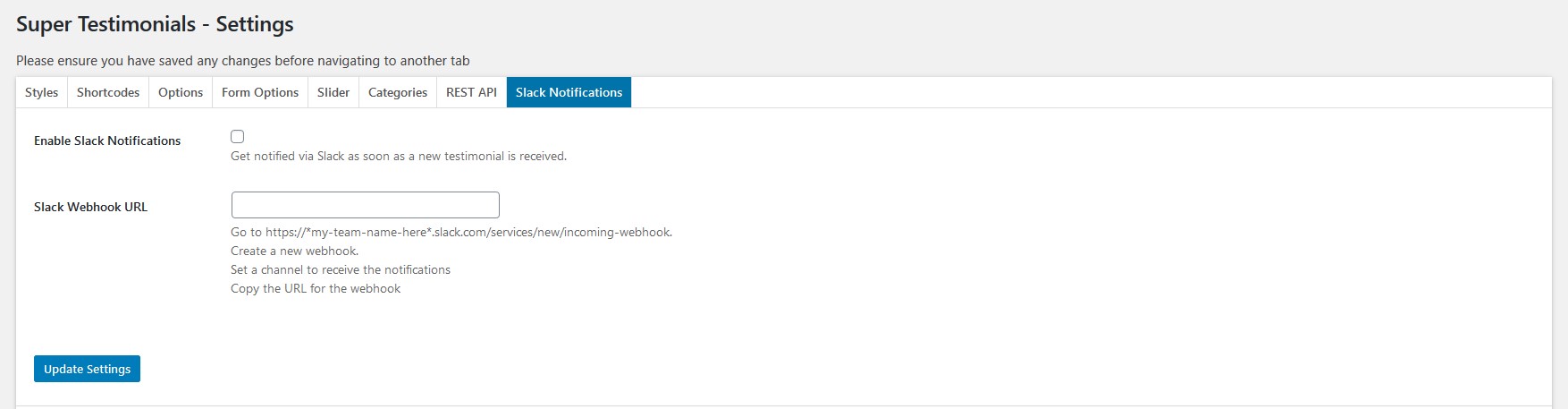
Premium Version Settings Page
The Super Testimonials Premium Settings page comprises eight tabs. Each tab controls a different aspect of your testimonials display and behaviour.
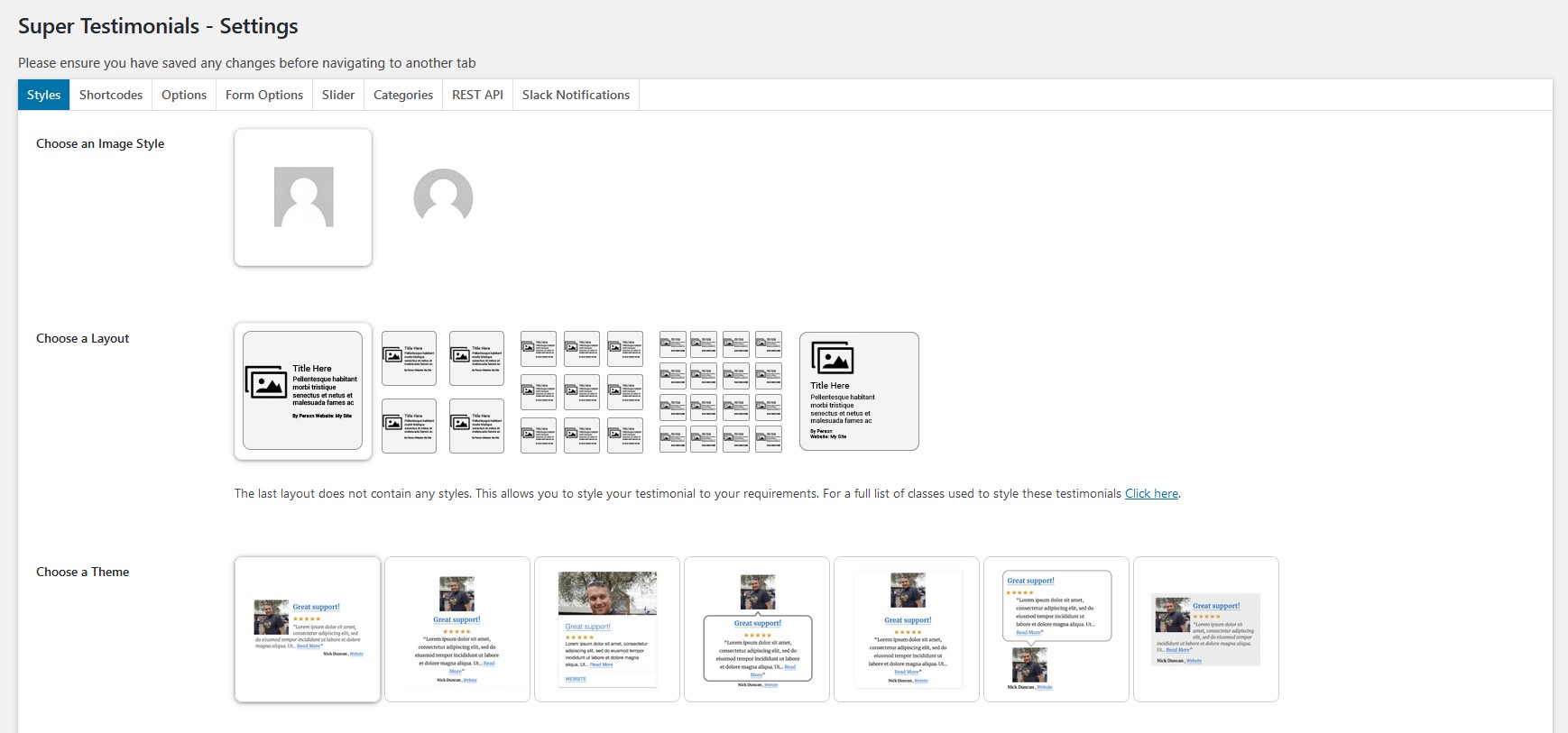
1 Styles choose an image style, layout, theme and customise your testimonials
- The Image style section lets you choose between a default squared image or a rounded image.
- The Layout section provides five options 1 column (default), 2 columns, 3 columns, 4 columns, or a custom layout you style yourself.
- The Choose a theme section contains six themes all six are available in the Premium version.
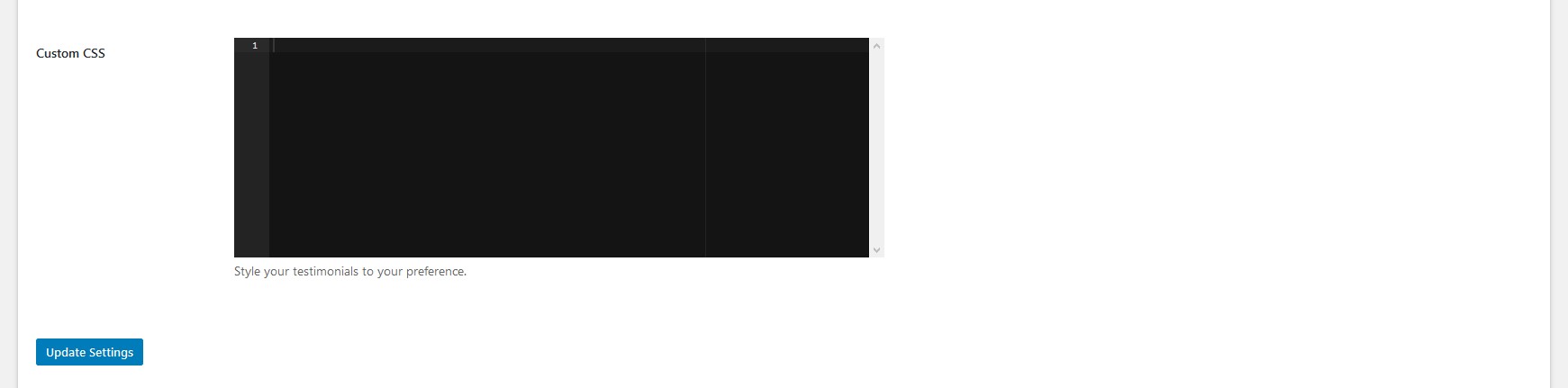
- The Custom CSS section provides a space to style your testimonials using your own CSS.
NB! Please save any changes before navigating to another tab.
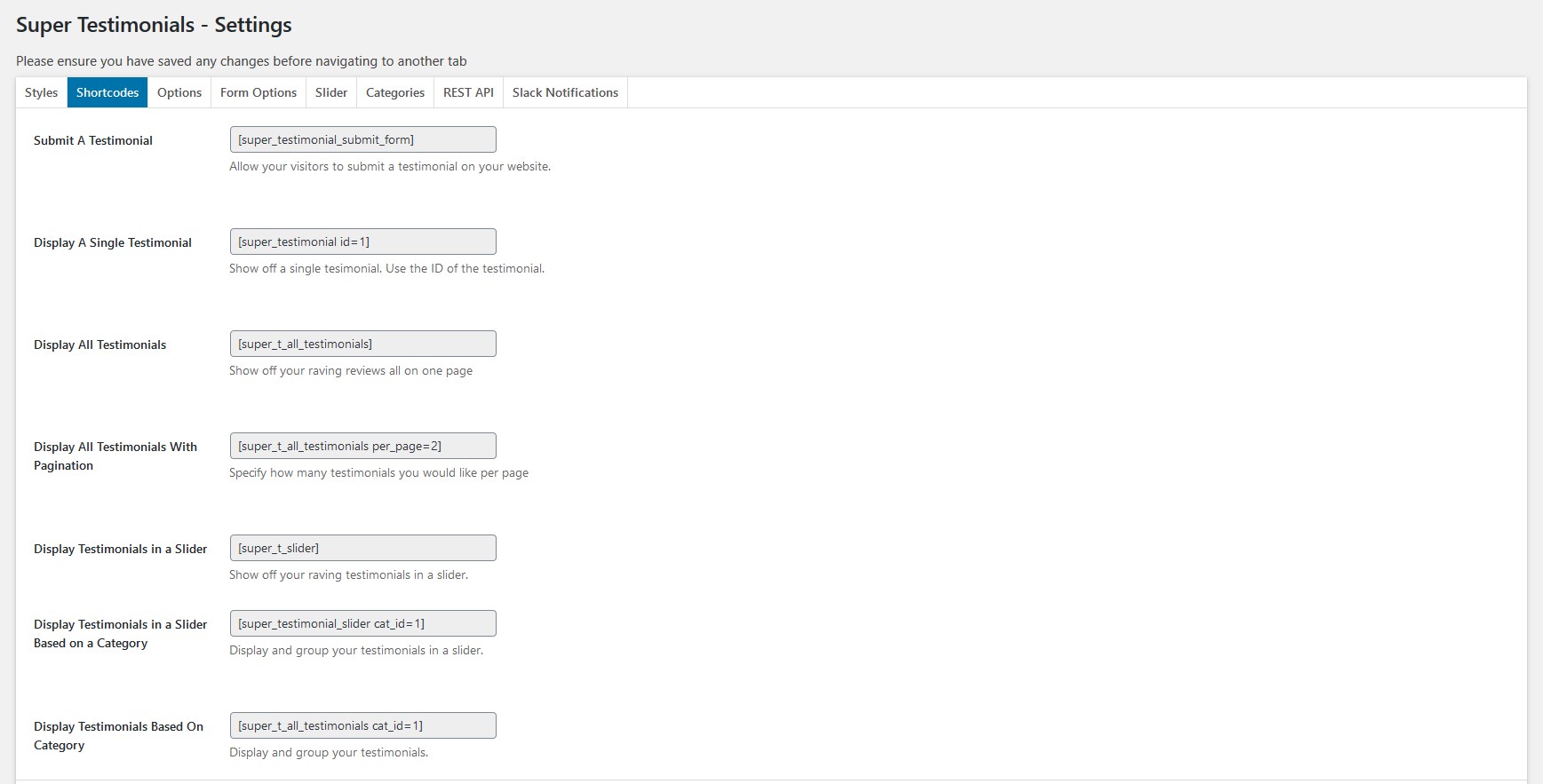
2 Shortcodes all the shortcodes available in the Premium plugin
The following shortcodes are available in the Premium Version:
[super_testimonial id=1]
Display a single testimonial by its ID.
[super_t_all_testimonials]
Display all testimonials on one page.
[super_t_all_testimonials per_page=2]
Display testimonials with pagination - set how many appear per page.
[super_t_slider]
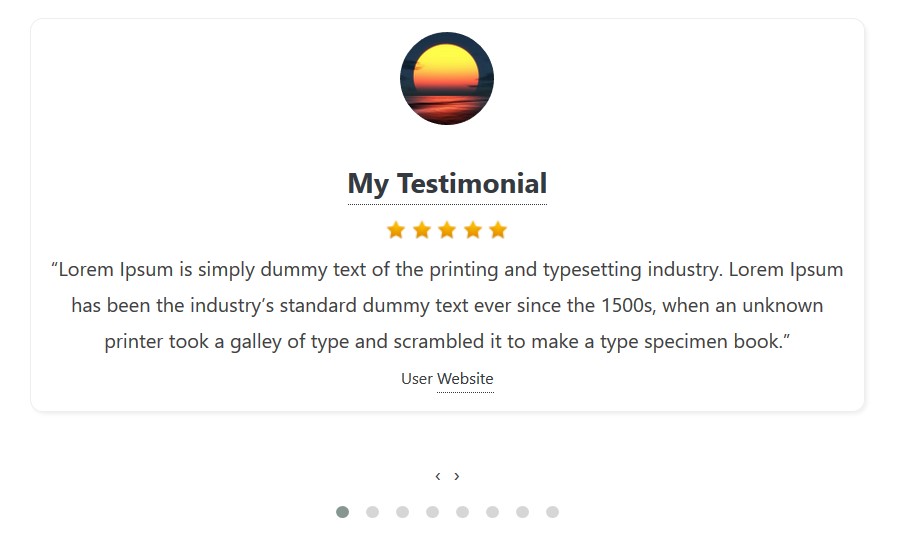
Display all testimonials in a responsive slider.
[super_testimonial_slider cat_id=1]
Display testimonials from a specific category in a slider.
[super_t_all_testimonials cat_id=1]
Display all testimonials filtered by a specific category.
[super_testimonial_submit_form id=1]
Render a testimonial submission form, allowing visitors to submit testimonials from the frontend.
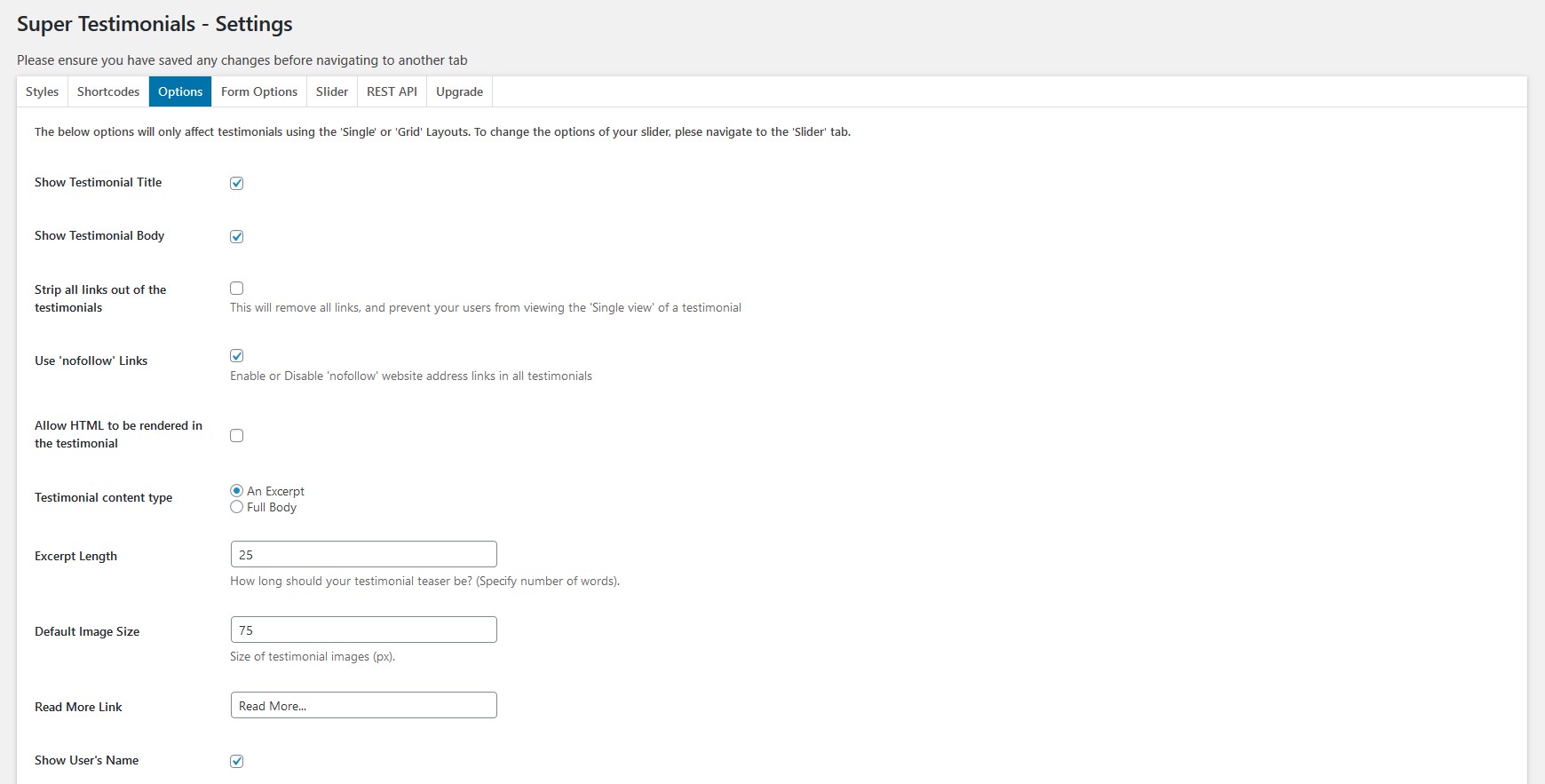
3 Options - controls for single and grid layout testimonials
- Show or hide the testimonial title.
- Show or hide the testimonial body.
- Strip all links out of testimonial content.
- Mark links as nofollow.
- Enable HTML rendering in the testimonial edit page.
- Specify the testimonial content type.
- Set the excerpt length.
- Set the default image size.
- Customise the read more link.
- Show or hide the user's name.
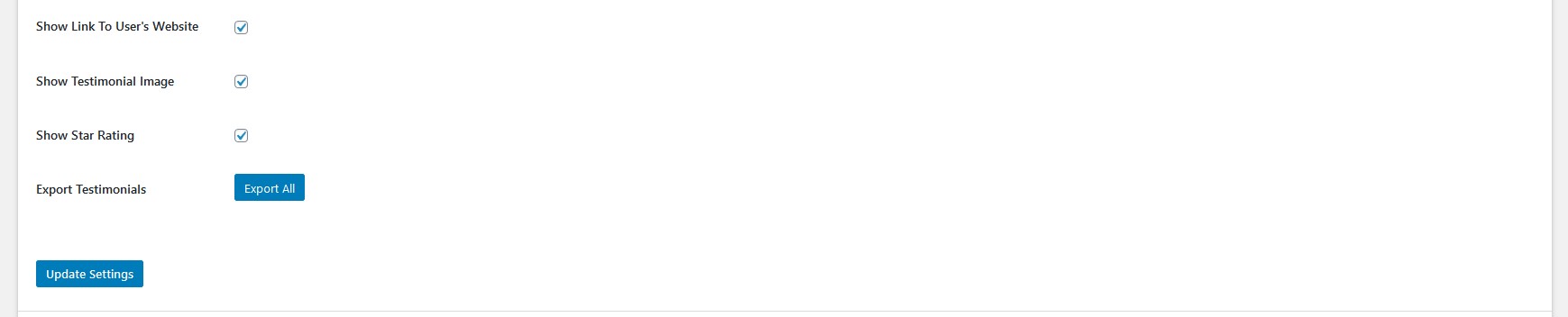
- Show or hide a link to the user's website.
- Show or hide the testimonial image.
- Show or hide star ratings.
- Export all testimonials to a file.
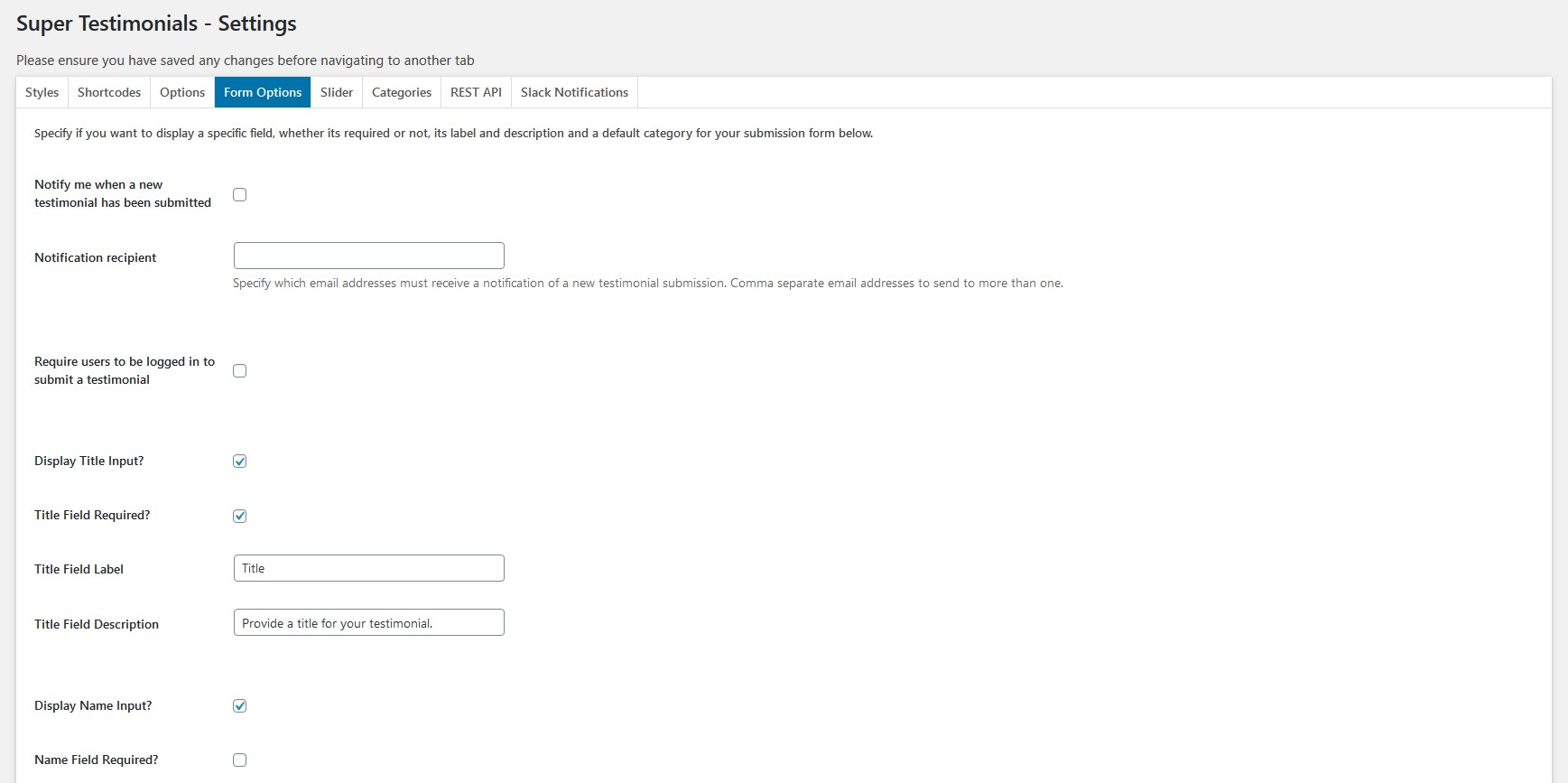
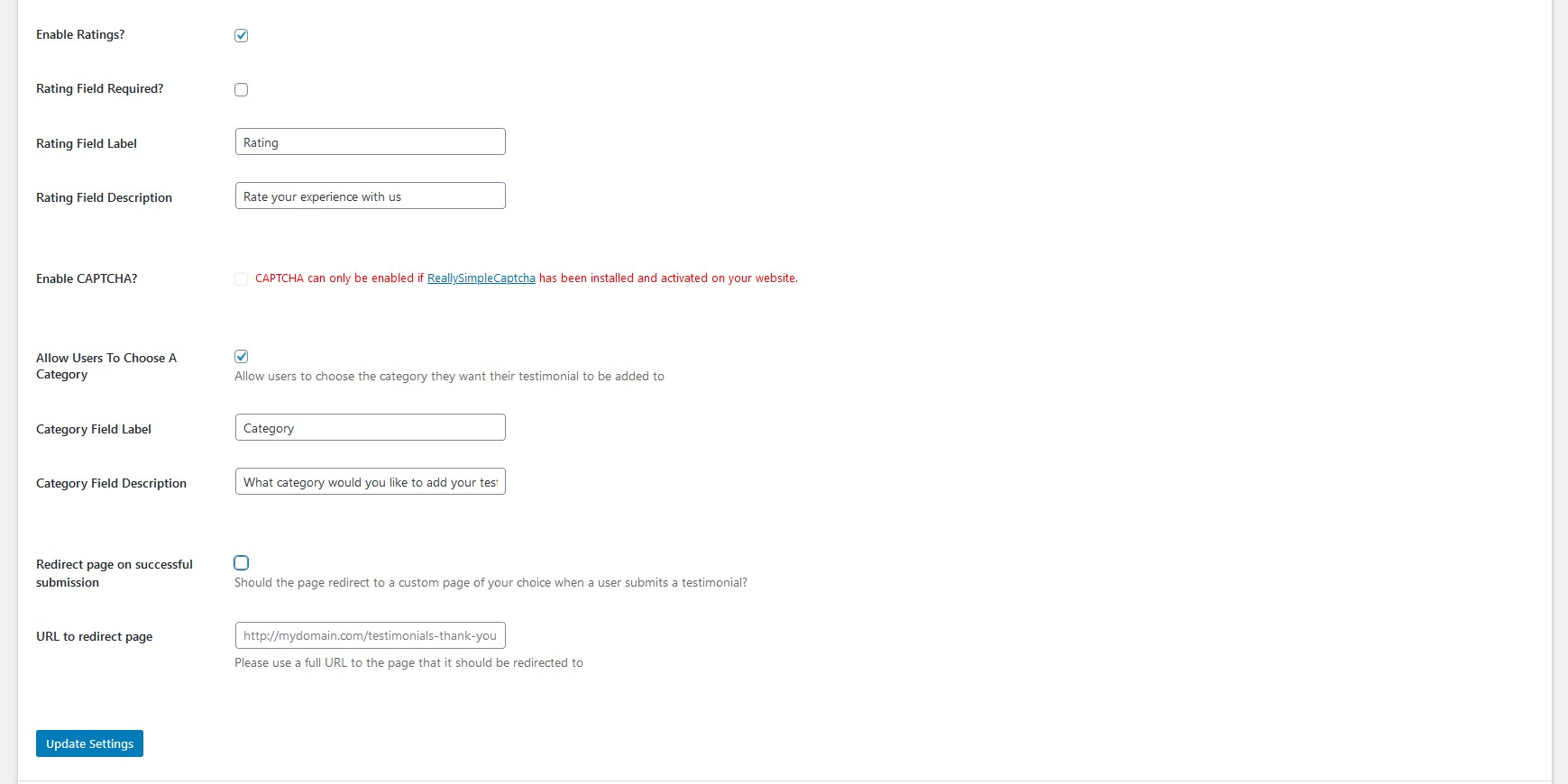
4 Form Options - create a comprehensive testimonial submission form
- Notify when a new testimonial has been submitted.
- Set the notification recipient email address.
- Require users to be logged in to submit a testimonial.
- Display and configure the title field - label, description, and required toggle.
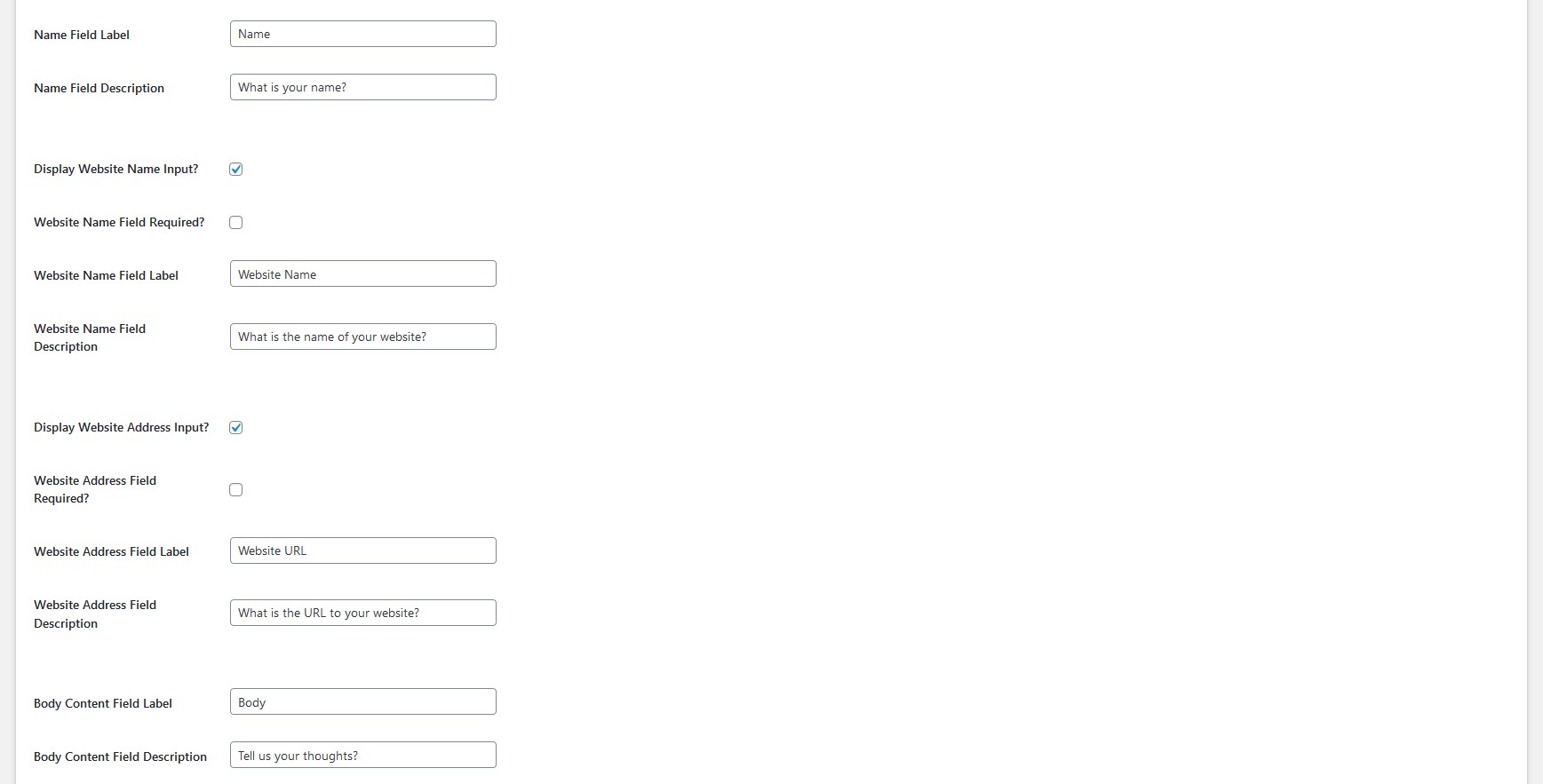
- Display and configure the name field - label, description, and required toggle.
- Display and configure the website name field - label, description, and required toggle.
- Display and configure the website address field - label, description, and required toggle.
- Set the body content field label and description.
- Enable star ratings and set rating field label, description, and required toggle.
- Enable CAPTCHA to protect against spam submissions.
- Allow users to choose a category when submitting - set field label and description.
- Set a redirect page on successful submission and provide the redirect URL.
5 Slider - customise a responsive testimonial slider
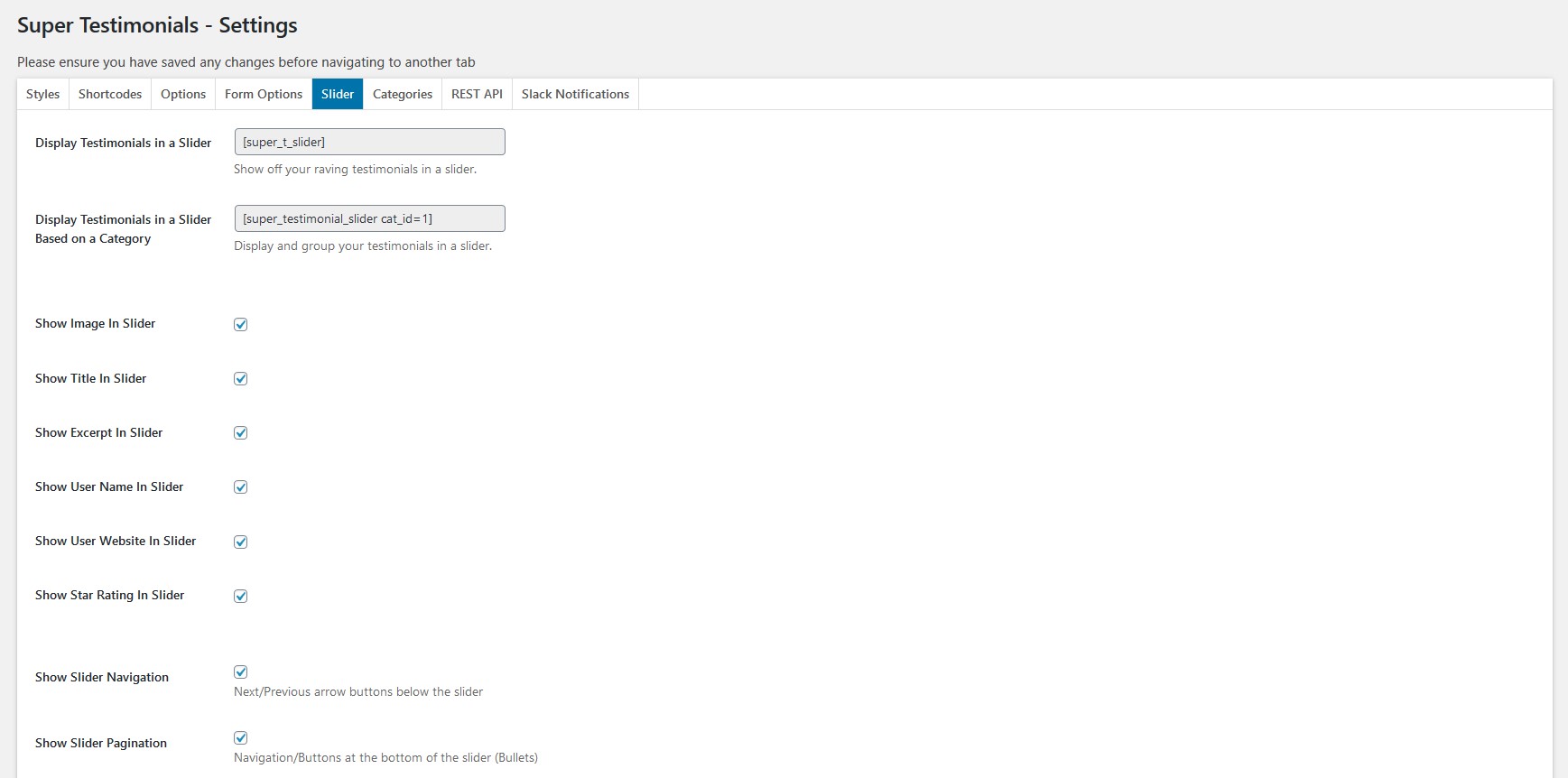
- Display testimonials in a slider using [super_t_slider].
- Filter the slider by category using [super_testimonial_slider cat_id=1].
- Choose what to display in slides - images, titles, excerpts, usernames, and website names.
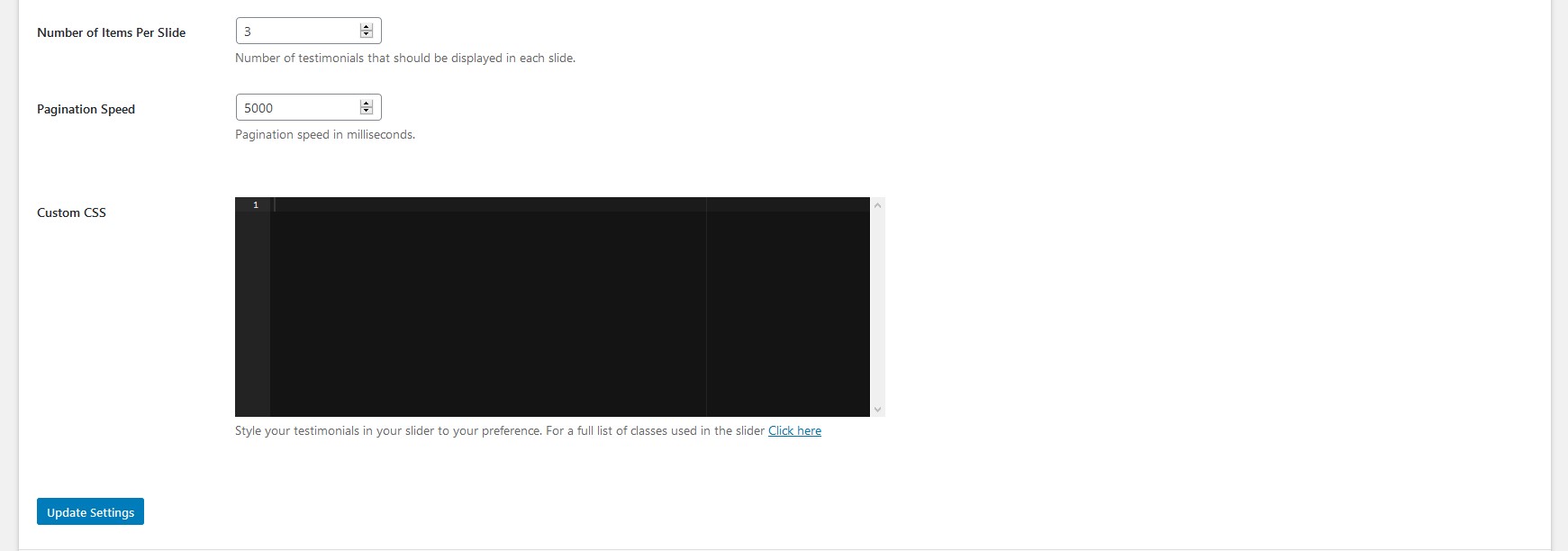
- Configure Slider Navigation, Slider Pagination, and the number of testimonials per slide.
- Add custom CSS to further style your testimonial slider.
6 Categories - create and manage testimonial categories

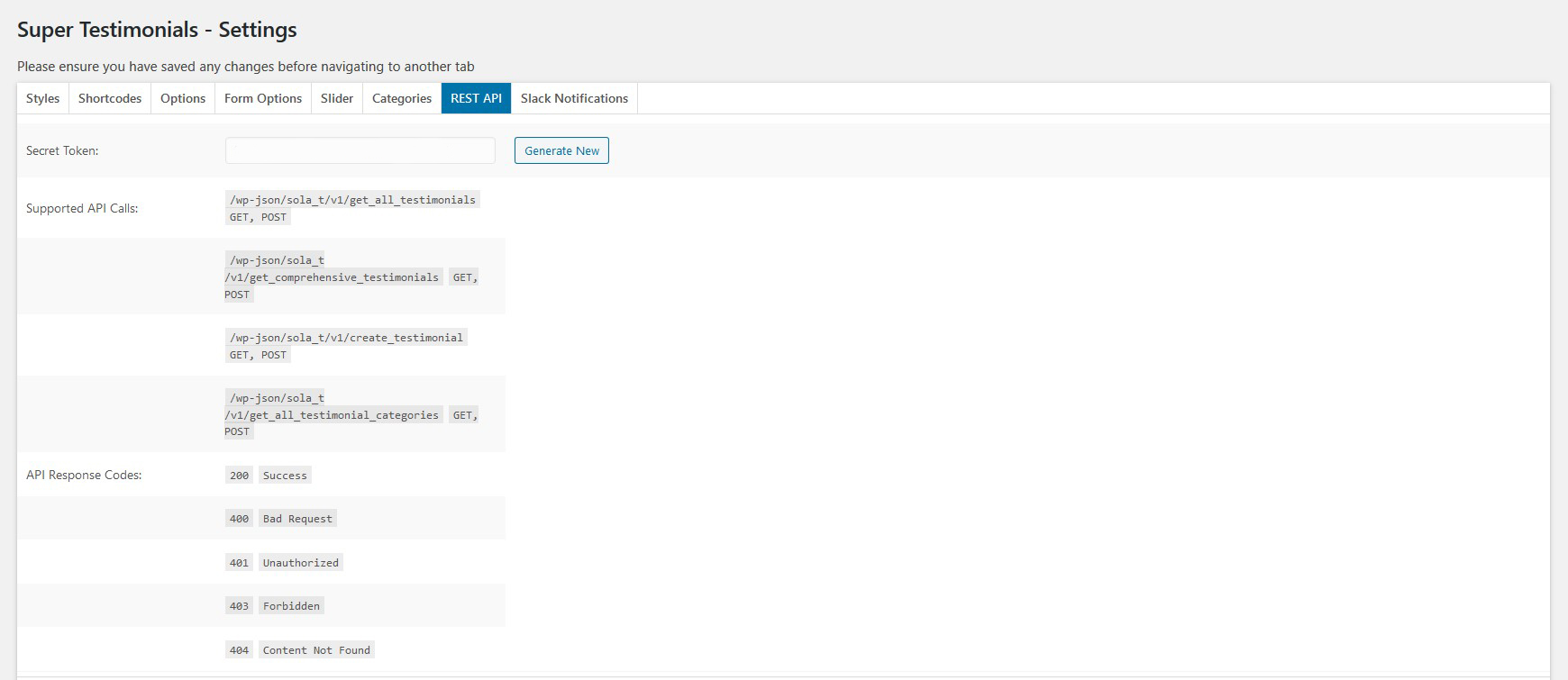
7 REST API - information about the REST API
8 Slack Notifications - set up Slack alerts for new testimonials