Creating Your First Testimonial Free Version
Navigate to the Testimonials page in the admin menu and select Testimonials or All Testimonials to get started.
-
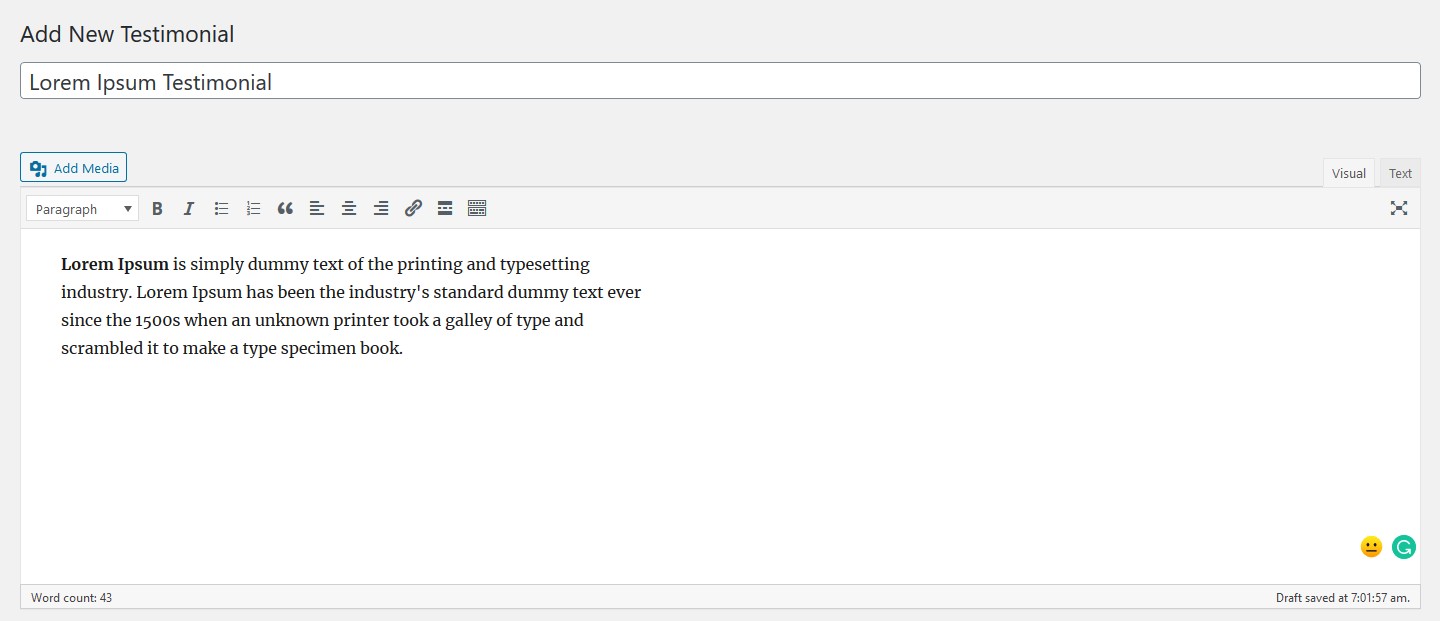
Click Add New to open the Add New Testimonial page, then type your testimonial message into the editor.
-
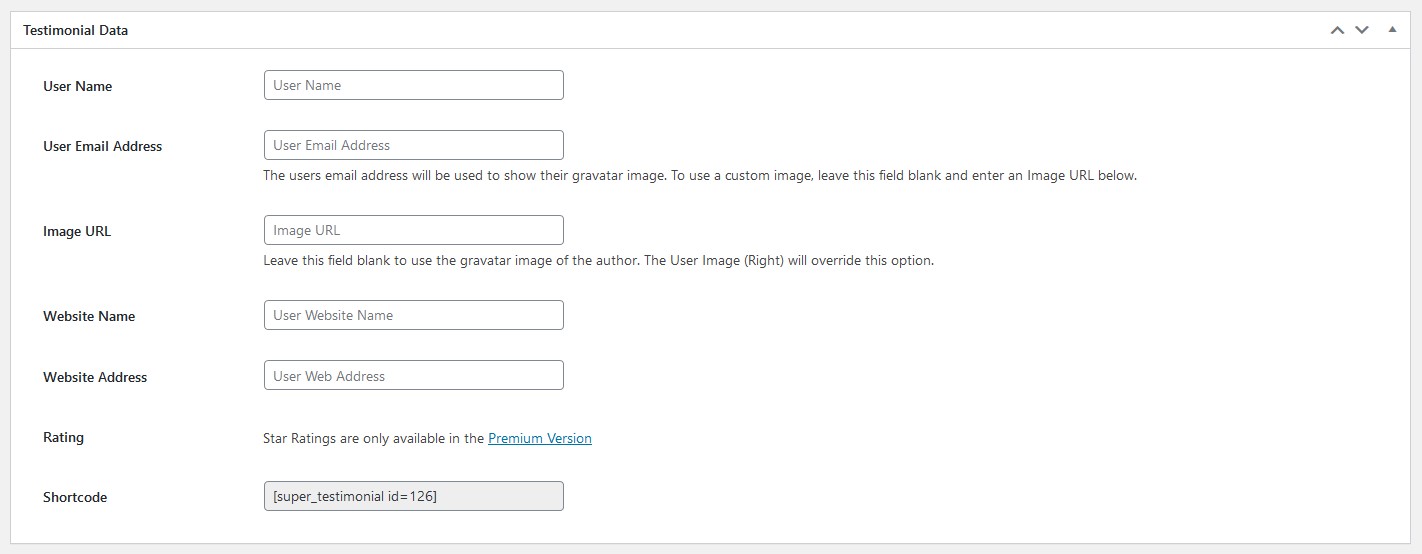
Below the editor, fill in the Testimonial Data metabox with the relevant details:
-
In the Testimonial Status metabox (top right), set the status to Pending Approval or Approved.
-
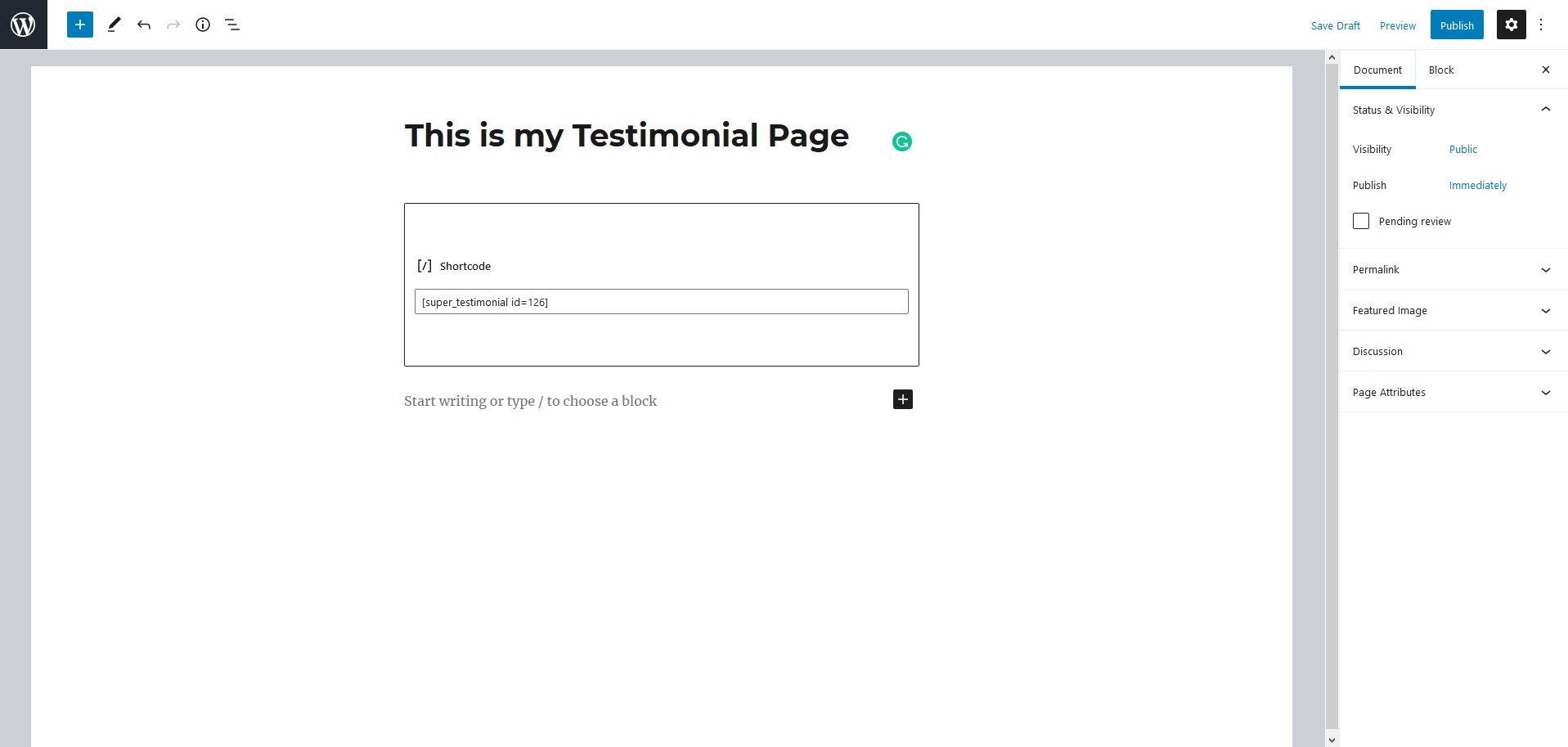
Copy the shortcode from the Testimonial Data metabox and paste it into any page where you want the testimonial to appear.
-
Click Preview Changes to see your newly created testimonial live on the page.